How to optimize your Google Business Profile: a practical guide for local businesses
A step-by-step guide to setting up and improving your Google Business Profile so more nearby customers find, call and visit you.
By LEBX Team
Published
On this page
- What is a Google Business Profile?
- How Google decides who shows up locally
- Step 1: Claim and verify your profile
- Step 2: Get the basics exactly right
- Step 3: Choose your categories carefully
- Step 4: Write a clear description and list your services
- Step 5: Add real photos
- Step 6: Earn and answer reviews
- Step 7: Use posts, Q&A and messaging sparingly but consistently
- Step 8: Connect your profile to your website
- Step 9: Track what's working
- Common mistakes to avoid
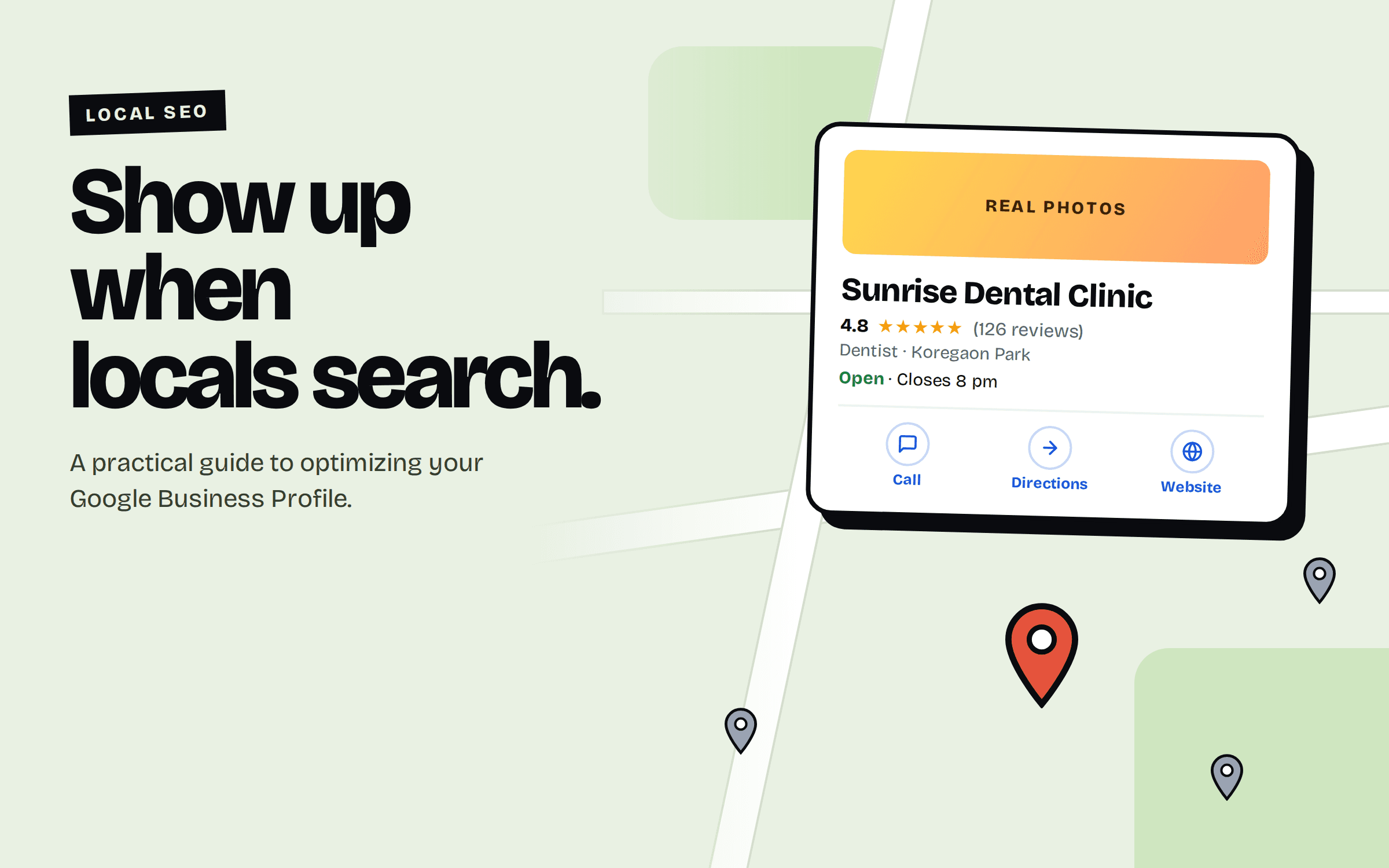
If you run a shop, clinic, salon, studio or any business people visit or book locally, your Google Business Profile is probably the most-viewed page about you. It's the panel with your name, map pin, opening hours, reviews and photos that appears when someone searches for what you do nearby. Most owners set it up once and forget it. That's a missed opportunity, because it's free and it takes an afternoon to get right.
What is a Google Business Profile?
A Google Business Profile (formerly Google My Business) is a free listing that controls how your business appears in Google Search and Google Maps. You manage it yourself: your address or service area, hours, phone number, website link, categories, photos, services and replies to reviews.
It matters because many local searches (“dentist near me”, “bakery open now”) are answered straight from these profiles, often before the searcher ever clicks a website.
How Google decides who shows up locally
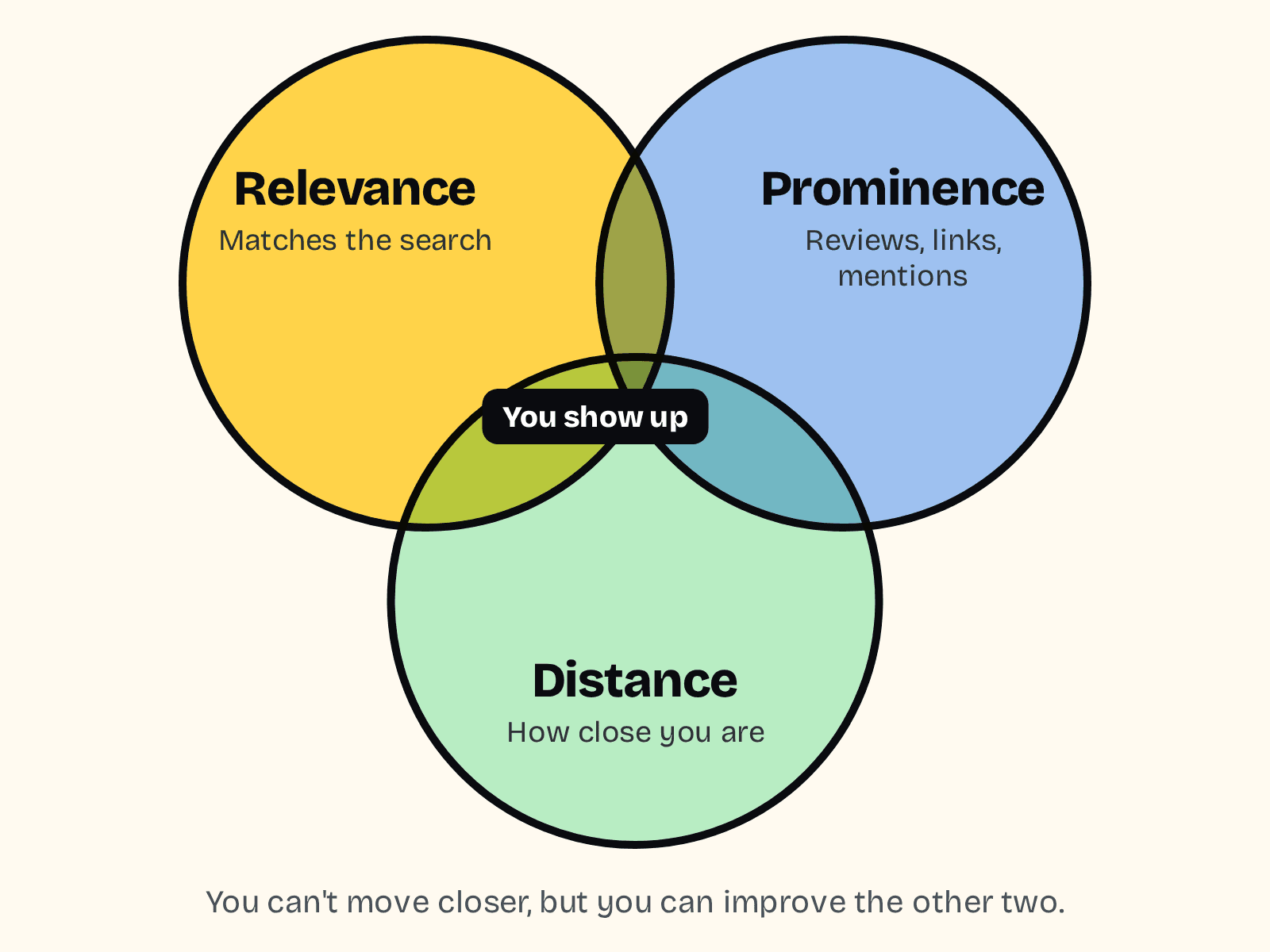
Google says local results are based mainly on three things: relevance (how well your profile matches the search), distance (how close you are to the searcher or the place they named) and prominence (how well known you are, which includes reviews, links and mentions across the web).
You can't change distance, but you can influence the other two. Everything below is about making your profile clearly relevant and demonstrably trusted.
Step 1: Claim and verify your profile
- Search for your business name on Google or Google Maps. If a listing already exists, claim it rather than creating a duplicate.
- If none exists, add your business from the Google Business Profile manager.
- Complete verification when Google asks. Depending on your business this may be a postcard, phone, email or video. Unverified profiles are limited in what they can do.
Step 2: Get the basics exactly right
Accuracy beats cleverness here. Check each of these:
- Business name: use your real, public name as it appears on your signage. Adding keywords (“Best Cheap Plumber Mumbai”) breaks Google's guidelines and can get the profile suspended.
- Address or service area: if customers visit you, show your address. If you travel to customers, set a service area and hide the address.
- Phone number and website: use a number you actually answer, and link to the most relevant page on your site.
- Opening hours: keep them current, and set special hours for holidays.
- Name, address and phone consistency: the same details should appear on your website, social profiles and directories.
Step 3: Choose your categories carefully
Your primary category is one of the strongest signals you control, so pick the most specific one that describes your core business (“Dermatologist” rather than just “Doctor”). Then add a few secondary categories for genuine secondary services. Don't add categories you don't really offer; it dilutes relevance.
Step 4: Write a clear description and list your services
Use the description to explain, in plain language, what you do, who you serve and what makes you different. Mention the areas you serve naturally. Avoid promotional claims, links and phone numbers in the text; Google's guidelines don't allow them.
Then fill in services (or products) with short descriptions. These help Google match you to specific searches and help customers decide before they call.
Step 5: Add real photos
Photos of your actual premises, team, work and products build trust faster than stock images. A sensible starting set: exterior (so people can recognize the place), interior, your team, your best work, and your logo. Add new ones regularly rather than all at once.
Step 6: Earn and answer reviews
Reviews are a big part of prominence, and they're also what customers read before choosing you. The way to get more is simple: ask, and make it easy.
- Share your review link by WhatsApp, SMS or a QR code at the counter. A short link or QR code from a tool like Blink works well for this.
- Ask right after a good experience, while it's fresh.
- Never offer discounts or gifts in exchange for reviews, and never write fake ones. Both break Google's policies.
- Reply to every review, positive or negative, politely and specifically. For a bad review, acknowledge the issue, keep it short and offer to fix it offline.
Step 7: Use posts, Q&A and messaging sparingly but consistently
Posts about offers, events or updates keep the profile fresh. Check the questions section for anything customers are asking and answer it. If you enable messaging, only do so if you can reply quickly; slow replies hurt more than no option.
Step 8: Connect your profile to your website
Your profile and your website should support each other. Make sure the website has a page for each location or main service, shows the same name, address and phone number, and loads fast on a phone. If you're launching a new site, our technical SEO checklist covers the basics. If you'd like a site built for local search from day one, see our web development service.
Step 9: Track what's working
The profile's performance section shows how people found you and what they did: calls, direction requests, website clicks. Add UTM parameters to your website link so visits from the profile show up separately in your analytics. Review the numbers monthly and note which changes were followed by improvements.
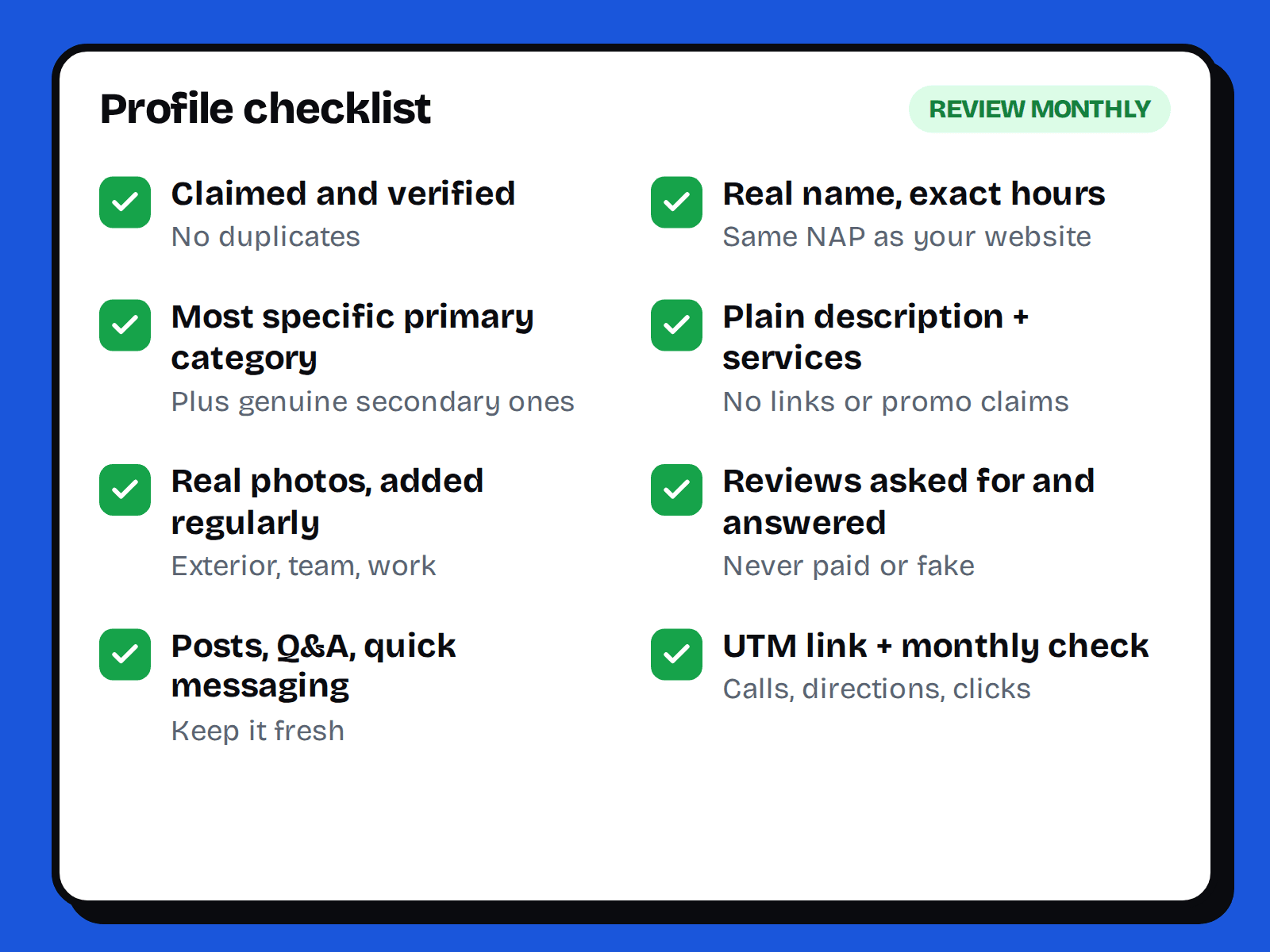
Common mistakes to avoid
- Stuffing keywords into the business name.
- Leaving old hours or a closed-location listing live.
- Ignoring negative reviews.
- Using a virtual office or someone else's address to appear in a different area. This is against the guidelines and risks suspension.
- Setting it up once and never looking at it again.
If you'd rather have someone set up the profile, website and tracking together, get in touch and we'll help you plan it.
FAQ
Yes. Creating and managing a Google Business Profile is free. You only pay if you choose to run Google Ads separately.
Simple edits like hours or photos can appear within hours or days, though Google sometimes reviews changes first. Ranking improvements usually build over weeks, not overnight.
No, but a website helps. Without one you can still use the profile for calls, directions and reviews, but you'll miss a trust signal and a place to explain your services in detail.
Yes, if you serve customers at their location and don't have a storefront. You can set a service area and hide the address.
Common causes are keyword-stuffed names, a fake or shared address, or unverified edits. Check the guidelines, fix the issue and submit a reinstatement request through the profile.
- #google business profile
- #local seo
- #websites